
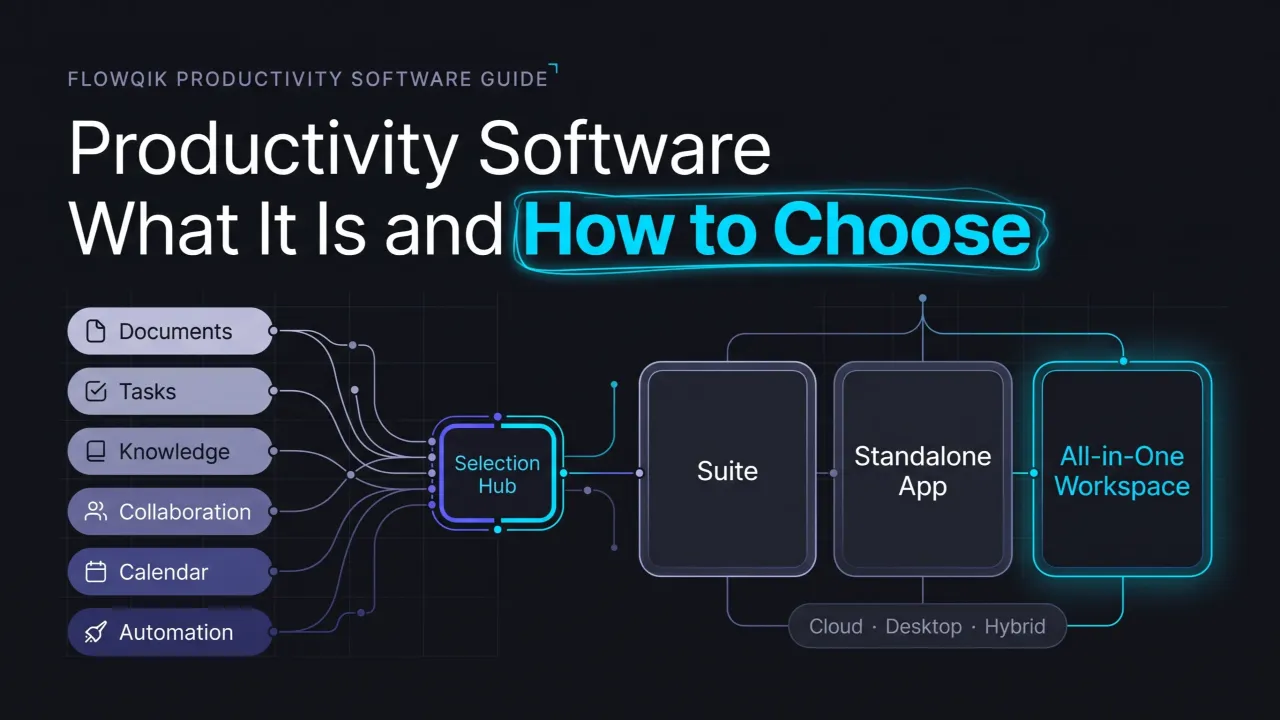
Productivity software is application software that helps people create, organize, and coordinate work: writing documents, analyzing numbers, keeping track of tasks, sharing information, and working with other people on the same material. A word processor is productivity software. So is a shared project board, a notes app, a team calendar, and the office suite your school or employer gives you on day one.
Because the term covers so much, it is easy to understand it loosely and still choose badly. This guide focuses on the software itself: what the category includes, how the main types differ, which features matter in practice, how cloud, desktop, and licensing choices affect you, and how to evaluate options without adding tools nobody uses. It is based on official vendor documentation, published references, and editorial analysis rather than hands-on product testing. For the wider landscape of productivity tools, including methods and utilities that are not software categories in their own right, see the Productivity Tools Hub.
What Is Productivity Software?
Computer science textbooks usually split software into two broad groups. System software, such as an operating system, runs the device. Application software runs on top of it to help a person accomplish a specific goal. Productivity software is the part of application software built for everyday work and study. David Bourgeois's open textbook Information Systems for Business and Beyond gives the classic examples, word processing and spreadsheet calculations, and notes that these programs are often bundled together in suites such as Microsoft Office.
That older definition is still accurate, but it is narrower than the way most people use the term today. In practice, productivity software meaning has expanded in two directions. It now includes software for coordinating work (task, project, calendar, and communication tools), not only software for producing files. And most of it now runs in the cloud, so the same documents, lists, and conversations are available on any device and can be shared with other people.
A useful working definition for today: productivity software is any general-purpose application that helps individuals or teams produce work, manage information, or coordinate tasks and time. The words "general purpose" matter. Software built to run one business function, such as payroll or a hospital records system, is usually classified as business or industry software instead, even though it also makes people more productive. The distinction is covered in more detail later in this guide.
How Productivity Software Works In Practice
Underneath the variety, most productivity software is built from the same few layers. Recognizing them makes very different products easier to compare.
The first layer is the work object: the thing you create or manage. In a word processor it is a document; in a spreadsheet, a workbook; in a task manager, a task with a due date and owner; in a calendar, an event. The second layer is organization: folders, projects, tags, search, and views that help you find work objects again. The third is sharing and sync: the ability to store work in one place, reach it from several devices, and let other people view, comment on, or edit it. Microsoft's documentation for Microsoft 365, for example, describes real-time co-authoring in Word, Excel, and PowerPoint, @mentions to request feedback inside a file, and version history for restoring earlier drafts.
Many products add a fourth layer, connection and automation: integrations with other apps, rules that act on events, and increasingly AI features that draft, summarize, or search. When you evaluate a product, asking how strong it is at each layer is often more revealing than reading its feature list.
Types Of Productivity Software
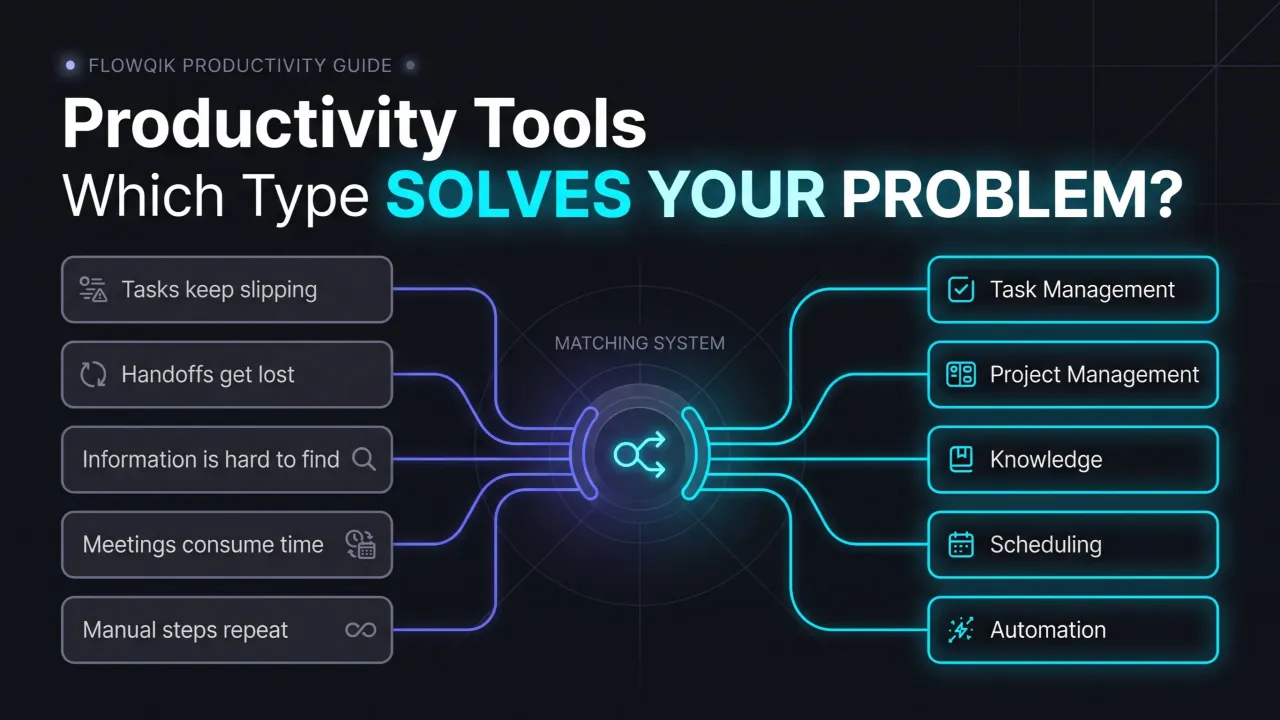
There is no official taxonomy, and vendors draw category lines to suit their products. The grouping below is organized around what the software primarily holds and helps you do. Categories overlap, and many products now span several of them.
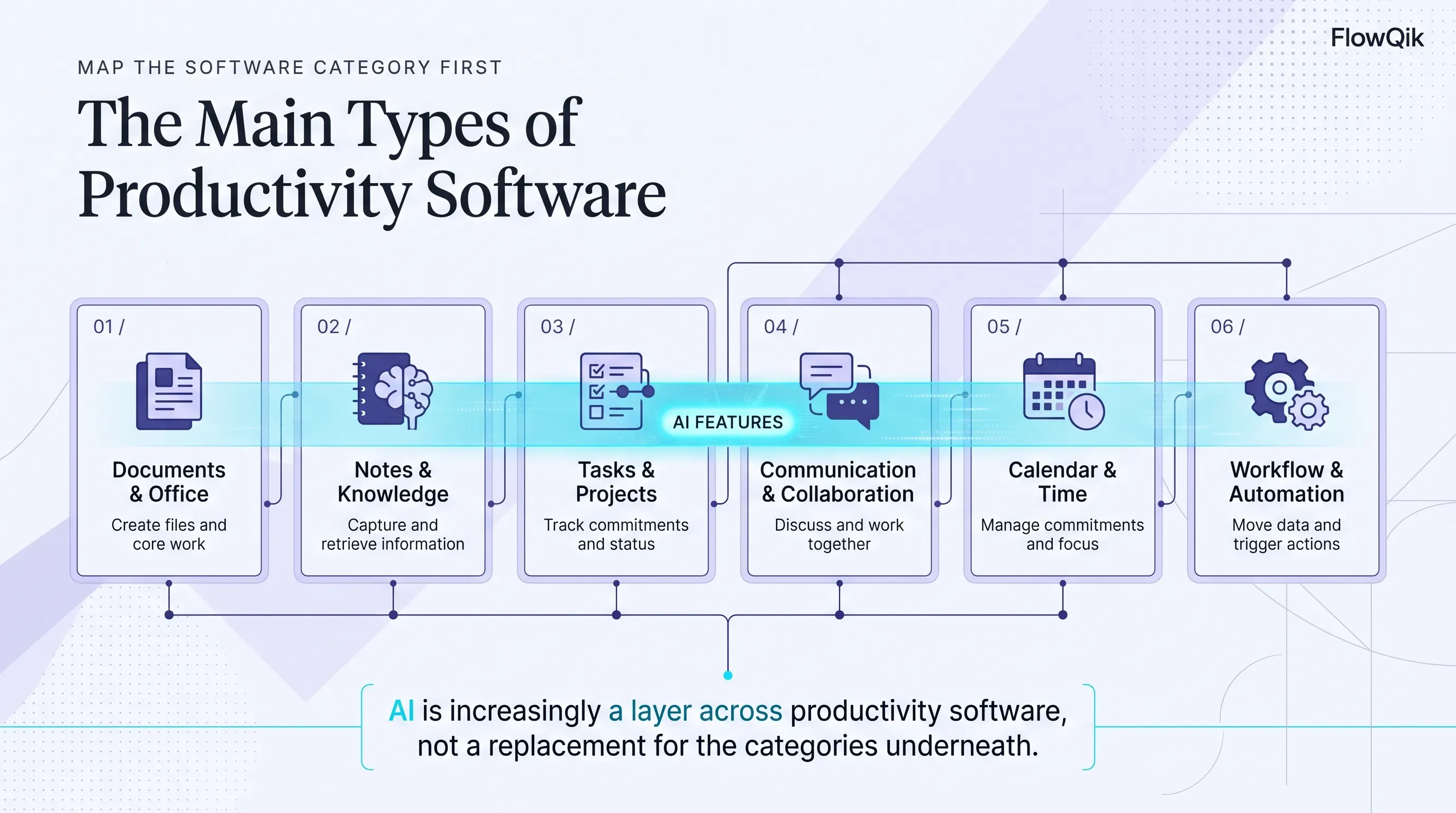
Document And Office Productivity Software
This is the original core of the category: word processing for written documents, spreadsheets for calculations and structured data, and presentation software for slides. Office productivity software is still the foundation most other tools connect to, because reports, budgets, proposals, and coursework end up as files in one of these formats.
These apps are usually sold or provided as a suite. Google Workspace bundles Docs, Sheets, and Slides with Gmail, Calendar, Meet, Chat, and Drive storage. Microsoft 365 is built around Word, Excel, PowerPoint, Outlook, OneDrive, and Teams. LibreOffice is a free, open-source suite, and Apple provides Pages, Numbers, and Keynote on its devices.
Notes, Knowledge, And File Management Software
Note-taking software captures ideas, meeting notes, reading notes, and research quickly, often across devices. Knowledge management software turns information into shared reference material, such as a team wiki, documented procedures, or onboarding guides. Cloud file storage, such as Google Drive or OneDrive, sits alongside both as the place where files live and are shared.
The defining capability of this category is retrieval. A note or a wiki page is only valuable if someone can find it months later, so search quality, structure, and linking between pages matter more than editing features.
Task And Project Management Software
Task management software records what needs to be done, by when, and in what order. Project management software adds shared ownership, dependencies, and views such as boards, lists, and timelines so that several people can see the status of the same work. Familiar examples include Todoist and Microsoft To Do on the personal side, and Asana, Trello, and Jira for teams.
The main difference between the two is who else needs to see the work. A personal task list can be as simple as you like. A shared project needs agreed structure, or it quickly fills with duplicate and abandoned tasks.
Communication And Collaboration Software
Communication software covers email, team chat, and video meetings. Collaboration software is where people work on the same material together: shared documents with comments and suggestions, whiteboards, and shared spaces for a project. Slack, Microsoft Teams, Zoom, and Google Meet are common examples, and the collaboration features inside office suites belong here too.
These tools are central for hybrid and distributed work. They are also the category most likely to create interruptions, which is why team norms about what goes in chat, what belongs in a document, and what needs a meeting matter as much as the software choice. The Team Productivity Tools guide goes deeper into shared workflows.
Calendar, Scheduling, And Time Software
Calendar software records time commitments and makes availability visible to others. Scheduling software reduces the effort of arranging meetings through booking links and shared availability. Time-focused software, such as time trackers, time-blocking planners, and focus timers, addresses a different question: where your time actually goes and how to protect it for concentrated work.
This guide treats time software as one category among several. If planning, tracking, or focus is your main problem, the Productivity Tools for Time Management guide compares the approaches properly.
Workflow And Automation Software
Workflow automation software connects apps so that an event in one triggers actions in others. A form submission can create a task, add a spreadsheet row, and post a message without anyone copying data by hand. Some automation is built into individual products as simple rules; dedicated platforms such as Zapier, Make, and Microsoft Power Automate connect many apps at once.
Automation is best suited to steps that are repetitive, rule-based, and already clearly defined. It needs an owner, because automations break quietly when a connected app changes a field name or loses access.
AI Features Across Productivity Software
AI is less a separate category than a layer appearing across all of the above. It shows up as standalone assistants and as built-in features such as drafting help in documents, formula suggestions in spreadsheets, meeting summaries, and natural-language search. Microsoft's comparison of Microsoft 365 and Office 2024, for instance, lists Copilot features in Word, Excel, PowerPoint, Outlook, and OneNote as part of the Microsoft 365 subscription but not the one-time-purchase Office 2024. Availability of AI features commonly depends on plan, region, and admin settings, and outputs still need human review. For specific options and use cases, see AI Productivity Tools.
Productivity Software Types At A Glance
| Category | Main purpose | Typical user | Example use case |
|---|---|---|---|
| Document and office software | Create documents, spreadsheets, and presentations | Almost everyone | Drafting a report and the budget behind it |
| Notes, knowledge, and file management | Capture, store, and retrieve information | Students, researchers, growing teams | Keeping searchable lecture notes or a team process wiki |
| Task and project management | Track commitments, owners, and status | Individuals (tasks), teams (projects) | Coordinating a product launch across departments |
| Communication and collaboration | Discuss, decide, and work on shared material | Hybrid and distributed teams | Reviewing a proposal through comments instead of a meeting |
| Calendar, scheduling, and time | Arrange time and understand where it goes | Client-facing roles, people with fragmented days | Sharing a booking link; blocking time for focused work |
| Workflow and automation | Move data and trigger actions between apps | Operations, marketing, admin roles | Sending new form leads to a CRM and a team channel |
| AI features (cross-category) | Draft, summarize, search, and assist | Writing- and research-heavy roles | Summarizing a long thread before a decision |
The product names in this guide are familiar examples used to illustrate categories, not recommendations. For individual app picks, see Best Productivity Apps.
Suites, Standalone Apps, And All-In-One Workspaces
Productivity software reaches people in three main packaging models, and the choice between them often matters more than the choice between two similar products.
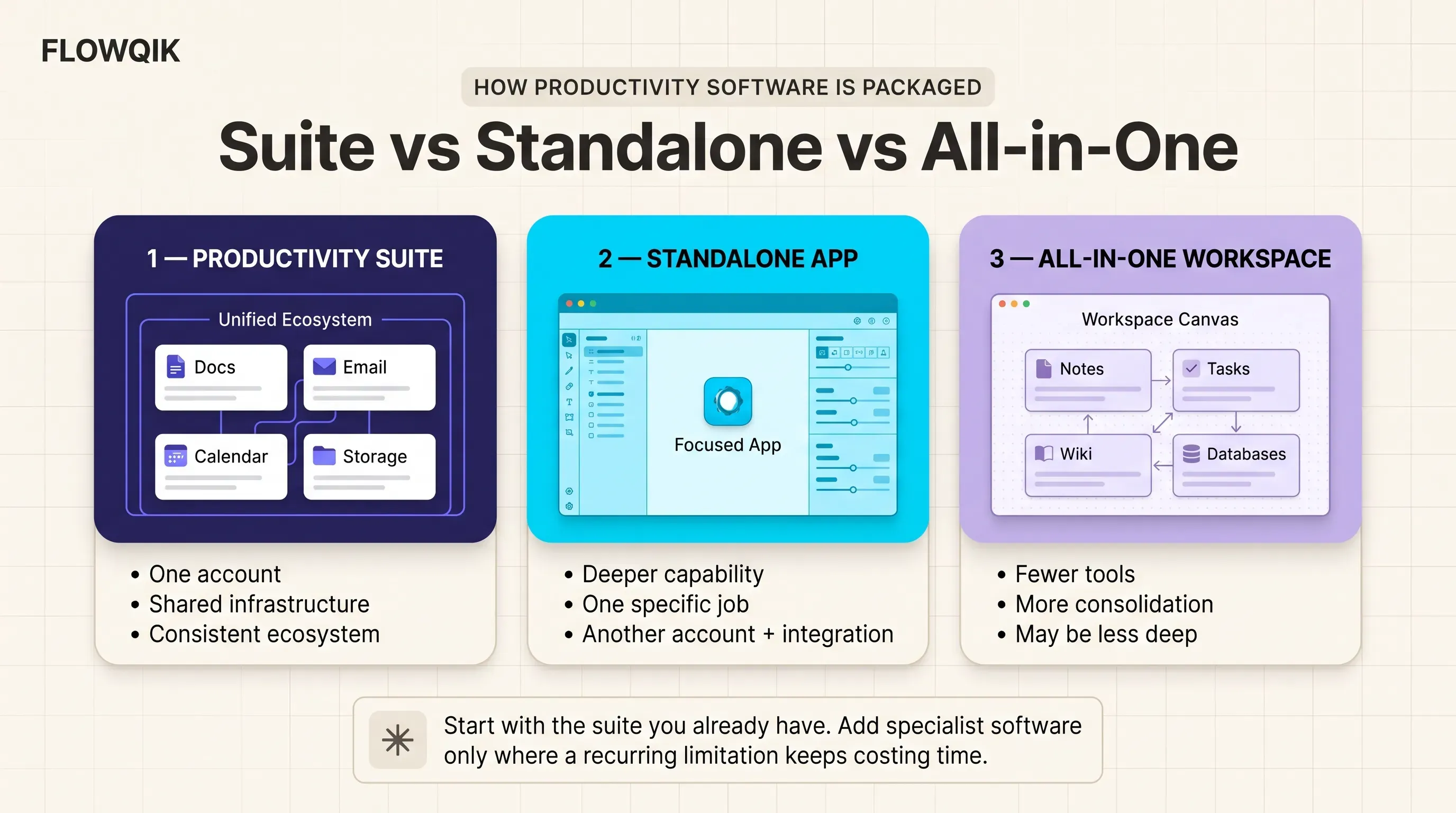
A productivity suite is a bundle of related applications sold or provided together under one account, usually documents, spreadsheets, presentations, email, calendar, and storage. Its strengths are consistency and shared infrastructure: one login, one admin console, one storage location, and files that open cleanly across the bundled apps. For most organizations, the suite they already have is the baseline, and a separate tool should justify itself by doing something the suite does poorly.
A standalone application does one job, often in more depth than the equivalent suite app. A dedicated project tool or note-taking app may offer views, templates, or workflows that a suite lacks. The tradeoff is another account, another bill, another place to search, and dependence on integrations to connect it with everything else.
An all-in-one workspace combines several categories, such as notes, documents, wikis, tasks, and databases, in one flexible product. It can reduce the number of apps a small team needs, but each built-in feature may be less capable than a specialist tool, and moving away later is harder because so much lives in one system.
A reasonable starting rule is to use the suite for core documents, email, calendar, and storage, then add standalone software only where a specific, recurring limitation keeps costing time.
Cloud, Desktop, And Hybrid Productivity Software
Productivity software is delivered in three main ways, and each affects access, collaboration, and control.
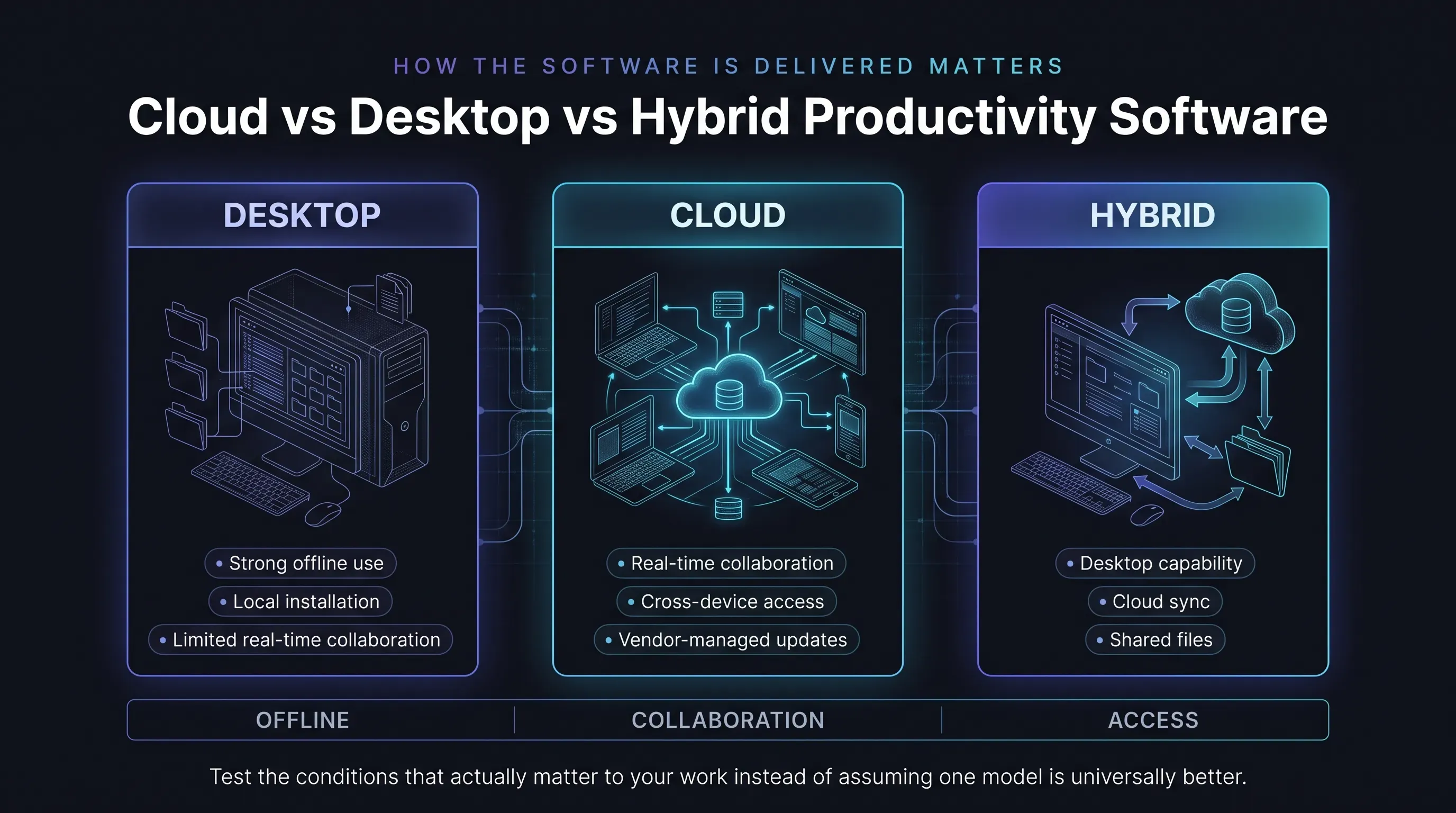
Desktop software is installed on a computer and works with files stored locally. It typically works fully offline and can offer the most complete feature sets, which still matters for heavy spreadsheet modeling or complex document layout. Sharing usually means sending files or storing them in a shared location.
Cloud-based productivity software runs in a web browser or syncs through the vendor's servers. Files live online, so real-time collaboration, cross-device access, and automatic saving are the default. The tradeoff is dependence on a connection and on the vendor. Offline support exists but is often conditional. Google's documentation for working offline in Docs, Sheets, and Slides, for example, requires Chrome or Microsoft Edge with the Google Docs Offline extension, does not work in private or incognito windows, needs enough local storage, and can be disabled by a workplace administrator.
Hybrid setups are now common: desktop apps that save to cloud storage and support co-authoring, plus web and mobile versions of the same apps. Microsoft 365 is an example, with installed desktop apps alongside free web versions of Word, Excel, and PowerPoint. Microsoft notes that files must be saved in and shared from OneDrive for real-time collaboration to work.
| Consideration | Desktop | Cloud | Hybrid |
|---|---|---|---|
| Offline work | Full | Limited or conditional | Usually good on desktop apps |
| Real-time collaboration | Limited | Built in | Built in when files are stored in the cloud |
| Device access | The installed machine | Any browser or device | Most devices |
| Updates | Manual or periodic | Continuous, vendor-controlled | Continuous for subscribed apps |
| Data location | Your device or network | Vendor's servers | Mixed |
If reliable offline work, local data control, or very large files are central to your work, test those conditions specifically rather than assuming a cloud tool handles them.
Licensing And Cost Models
How productivity software is licensed affects long-term cost, updates, and what happens to your files if you stop paying. Pricing changes often and varies by region and plan, so the models below matter more than any current price.
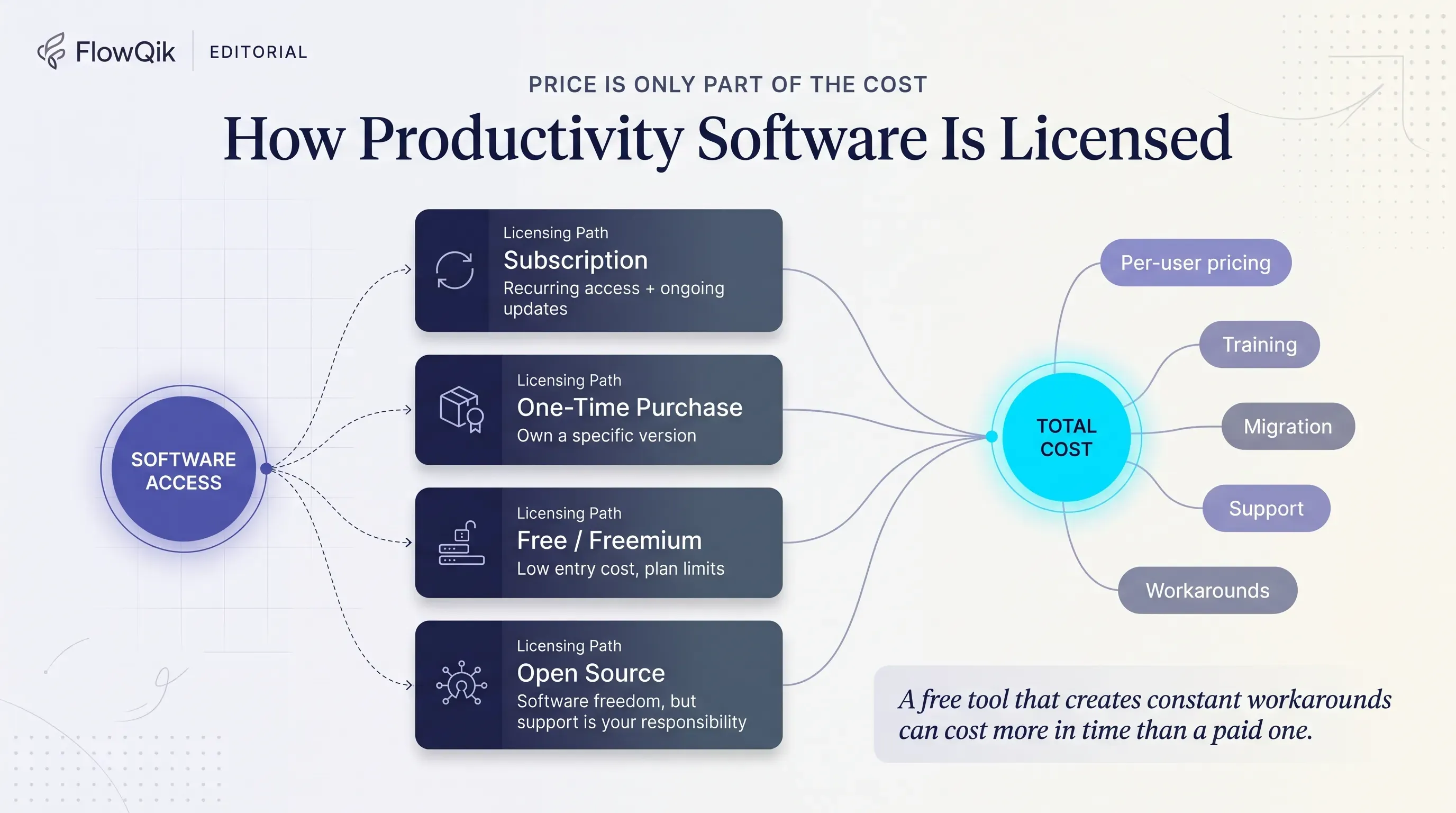
- Subscription: a recurring monthly or annual fee, usually per user for business plans. You get ongoing feature updates and, often, cloud storage. If the subscription lapses, access to some features or files may be reduced, depending on the product.
- One-time purchase (perpetual license): you pay once for a specific version. Microsoft describes Office 2024 this way: a single up-front cost for the apps on one PC or Mac, with security updates included but no new features. Microsoft 365, by contrast, receives ongoing feature updates.
- Free and freemium: many vendors offer free tiers or free versions. Microsoft offers web versions of Word, Excel, and PowerPoint with a free Microsoft account and 5 GB of OneDrive storage. Apple's Pages, Numbers, and Keynote remain free on its devices, while its Creator Studio subscription, launched in January 2026, adds premium templates, content, and AI features to them. Free plans are often enough for individuals; teams usually hit limits on users, storage, history, or admin controls.
- Open source: the source code is available and the software can be used, modified, and redistributed under its license. LibreOffice is licensed under the Mozilla Public License 2.0 and the GNU LGPL 3.0+, and is free to download. Organizations still need to plan for support and maintenance, which they take on themselves or buy from a third party.
When comparing costs, look past the entry price to per-user cost at your real team size, the tier that includes the features you actually need, and the cost of training and migration. A free tool that requires constant workarounds can cost more in time than a paid one.
Common Features Of Productivity Software And Why They Matter
Feature lists for productivity software tend to look similar. What separates products is how well a feature fits the way your work actually happens. The table below explains the features that most often affect day-to-day use.
| Feature | Why it matters | When it matters most |
|---|---|---|
| Real-time co-editing and comments | Removes version conflicts and long email chains | Any shared document, plan, or review |
| Version history | Lets you recover earlier work and see who changed what | Shared files, regulated or audited work |
| Search and organization | Determines whether information can be found later | Notes, knowledge bases, large file libraries |
| Sync and cross-device access | Keeps the same work available on laptop, phone, and tablet | Mobile workers, students moving between devices |
| Permissions and sharing controls | Controls who can view, comment, or edit | Teams, client work, sensitive information |
| Templates | Speeds up repeated work and keeps formats consistent | Recurring reports, projects, meeting notes |
| Integrations and APIs | Connects the tool to email, calendar, storage, and chat | Any setup with more than one or two tools |
| Automation rules | Handles predictable steps without manual effort | Repetitive handoffs and status updates |
| Notifications | Alerts people to changes that need action | Shared work, though too many become noise |
| Dashboards and reporting | Shows progress and workload at a glance | Managers and project leads |
| Import, export, and file compatibility | Lets you exchange files and leave without losing data | Working with outside parties, switching tools |
| Accessibility support | Makes the software usable with screen readers, keyboard navigation, and other assistive needs | Any organization, and a requirement for some |
Features Are Not Outcomes
A feature is something the software can do. An outcome is a change in how work goes: fewer missed handoffs, faster reviews, less time searching for files. The gap between the two is where most disappointing software purchases come from. A project tool with excellent dashboards produces no visibility if half the team never updates their tasks. A powerful automation feature saves nothing if the process it automates is still unclear.
When you read a feature list, translate each feature into the outcome you expect and ask what has to be true for that outcome to happen. Usually the answer involves people agreeing to use the software in a consistent way.
File Formats And Compatibility
File compatibility is easy to overlook until you exchange documents with someone outside your organization. Microsoft Office's .docx, .xlsx, and .pptx formats are the most widely exchanged in business. LibreOffice saves natively in the OpenDocument Format (ODF), an open standard adopted by the International Organization for Standardization as ISO/IEC 26300, and can also open and save many other formats. Most suites can open each other's files, but complex formatting, macros, and advanced spreadsheet functions do not always convert perfectly, so test the files you exchange most often before switching.
Individual Versus Team Productivity Software
The same category can call for different products depending on whether one person or a group depends on it. Personal productivity software can be flexible and opinionated, because nobody else relies on the setup. Team software has to support shared visibility, ownership, permissions, and administration, and it only works if people use it in a consistent way.
| Consideration | Individual use | Team use |
|---|---|---|
| Main goal | Capture and manage your own work quickly | Shared visibility and coordination |
| Setup | Whatever suits you; easy to change | Needs agreed structure and conventions |
| Permissions | Rarely needed | Essential for roles, guests, and sensitive data |
| Administration | None | Adding and removing users, access control, data retention |
| Integrations | Personal calendar, email, and notes | Company-wide email, chat, storage, and identity systems |
| Cost | Free or a single subscription | Per-user pricing that scales with headcount |
| Failure mode | You stop using it | Information splits across tools and people stop trusting it |
A common signal that you need team software is when information in your personal tool starts being needed by other people. At that point, moving the shared part into a team tool usually works better than asking colleagues to adopt your personal system. For a deeper look at shared workflows and team-level requirements, see Team Productivity Tools.
Productivity Software Examples In Everyday Work
Examples are most useful when they show the chain from a real need to the software capability that addresses it. The scenarios below are hypothetical illustrations, not case studies, and the expected benefit in each depends on the person or team actually using the tool consistently.
A student managing coursework. The need is keeping track of deadlines across several classes and finding notes before exams. The relevant categories are note-taking software and a calendar, possibly with the school's office suite for assignments. The key capabilities are searchable notes organized by course, reminders for due dates, and cloud sync between a laptop and phone. The expected benefit is fewer missed deadlines and less time hunting for material during revision.
A knowledge worker juggling requests. The need is turning requests from email, chat, and meetings into a single reliable list. The categories are a personal task manager alongside the company suite's documents and calendar. The capabilities are quick capture, due dates, and calendar integration for blocking time. The expected benefit is that commitments live in one place rather than in memory and inboxes.
A small team running a project. The need is knowing who owns each piece of work and where it stands without a daily status meeting. The categories are project management and collaboration software. The capabilities are shared boards with owners and due dates, comments on tasks, and integration with team chat so updates appear where people already work. The expected benefit is fewer "where are we on this?" messages and clearer handoffs.
A manager overseeing several workstreams. The need is an accurate picture of progress and workload. The categories are project software with dashboards, shared documents for decisions, and workflow automation for routine steps such as turning approved requests into tasks. The expected benefit is less manual status gathering, provided the underlying data is kept up to date.
Taken together, these examples show a pattern. Most people and teams do not need one tool from every category. They need a small, connected set where each type of information has one obvious home, which is often described as a productivity stack.
Benefits Of Productivity Software, Realistically
Used well, productivity software makes work easier to produce, find, share, and coordinate. Its most dependable benefits are fairly concrete:
- Less manual work: templates, formulas, and automation remove repeated steps and reduce copying errors.
- Shared, current information: cloud documents and shared projects mean people work from the same version rather than conflicting copies.
- Visibility: task and project tools make commitments, owners, and status visible without asking.
- Access from anywhere: sync and web access let people work across devices and locations.
- Findability: search and structured storage make past work reusable rather than lost.
What productivity software does not do is guarantee higher productivity. Claims of fixed percentage gains from adopting a tool are rarely supported by independent evidence, and results depend on fit, adoption, and how clearly the underlying work is defined. The benefits above are better treated as what becomes possible than as what automatically happens.
Limitations And Tradeoffs
Every piece of productivity software adds something to manage. The limitations below are the ones most likely to determine whether a tool helps or quietly makes work harder.
Adoption effort. New software takes time to learn and requires agreement on how to use it. Tools that are powerful but complicated often end up used by one enthusiastic person while everyone else continues the old way.
Feature overload. Products that try to do everything can bury the few features you need. More configuration options also mean more decisions and more inconsistency between users.
Notification overload. Each shared tool generates alerts. Without sensible defaults and team norms, notifications become a constant stream of interruptions, working against the focus the software was meant to support.
Tool sprawl. Adding apps for every need splits information across places and increases context switching. Gartner's 2023 digital worker survey found the average digital worker used 11 applications for work, up from six in 2019. The Productivity Tools Hub looks at when another tool is not the answer.
Integration limits. An integration listed on a vendor's website may sync only some fields, run only in one direction, or require a higher-priced plan. Check how it actually behaves with your data.
Migration and lock-in. Moving years of documents, tasks, and notes between products is often harder than expected. Formatting, comments, links, and history may not transfer cleanly.
Cost creep. Per-user pricing, add-ons, and premium AI features can raise costs well above the entry price as a team grows.
Privacy and security. Cloud software means trusting a vendor with your data. Organizations need to understand where data is stored, who can access it, how it is protected, and how AI features are permitted to use it.
Software cannot fix an unclear process. If ownership is undefined or priorities change daily, a new tool usually documents the confusion rather than resolving it.
How To Choose Productivity Software
The most reliable way to choose productivity software is to start with the problem, then select the category, then compare products within it. Starting with products tends to produce a tool that looks impressive in a demo and fits nobody's actual workflow.
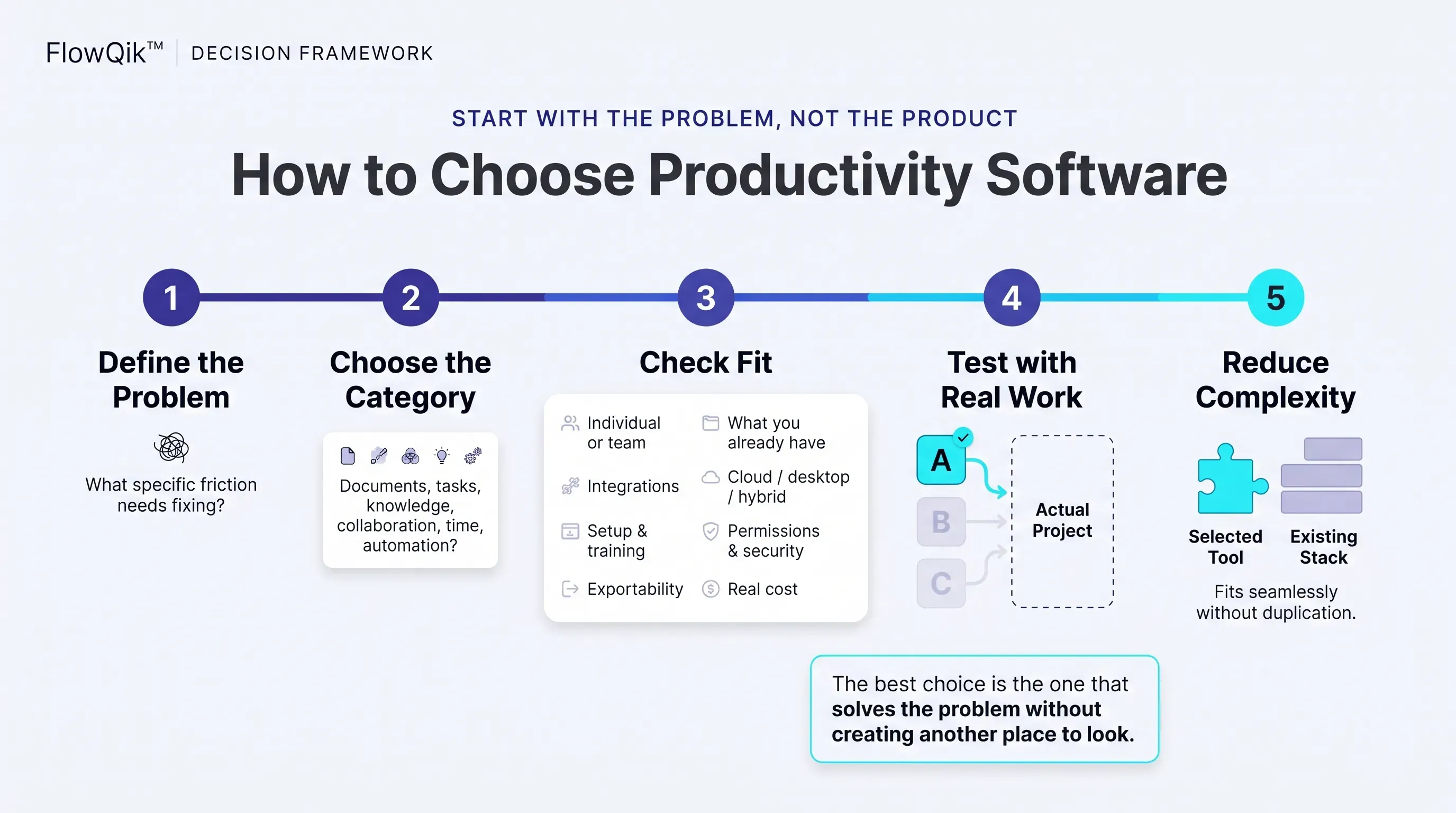
Use the questions below as a simple evaluation framework.
| Question | Why it matters |
|---|---|
| What specific problem are you trying to solve? | Defines the category and gives you a way to judge whether the tool worked |
| Is the work individual or collaborative? | Determines whether you need permissions, administration, and shared views |
| What do you already have? | Your existing suite may already cover the need |
| What must it integrate with? | Email, calendar, storage, chat, and sign-in systems need to connect reliably |
| Where and how will people use it? | Desktop, web, mobile, and offline needs vary by role |
| How much setup and training can users tolerate? | Complex tools fail when nobody has time to learn them |
| What permissions and security controls are required? | Client work, regulated data, and larger teams need admin and access controls |
| Can you get your data out? | Export options protect you if the tool stops fitting |
| What will it cost at your real size and tier? | Entry prices rarely reflect what a growing team pays |
| Will it reduce complexity or add another layer? | A tool that duplicates another creates more places to look |
Security And Data Questions To Ask At A Broad Level
You do not need to be a security specialist to ask useful questions. Check whether the product supports two-factor authentication and, for organizations, single sign-on; what admin controls exist for sharing and access; where data is stored and whether that matters for your industry or region; whether and how AI features use your content; how long deleted data is retained; and whether you can export your data in a standard format. Google, for example, offers Google Takeout for exporting account data. Vendors typically publish trust, privacy, or security documentation that answers most of these questions.
Trial With Real Work
Shortlist two or three options and test them with an actual project rather than sample data, ideally for a couple of weeks and with the people who will use it daily. Pay attention to the friction that a feature list cannot show: how quickly people find things, whether updates keep happening after the first few days, and whether the tool reduces the number of places people check. If the problem you defined at the start has not improved, choosing not to adopt the tool is a reasonable result.
Productivity Software Vs Adjacent Software Categories
Several neighboring categories are often confused with productivity software. Knowing the differences helps you search for the right kind of product.
| Category | What it does | How it differs from productivity software |
|---|---|---|
| System software | Runs the device: operating systems, drivers, utilities | Productivity software is application software that runs on top of it |
| Business management software (ERP, CRM, accounting, HR) | Runs specific organizational functions and records | Built around business processes and data, rather than general-purpose work |
| Industry or vertical software | Serves one profession, such as legal case management or medical records | Specialized for a field; productivity software is general purpose |
| Creative and design software | Produces images, video, audio, or detailed design | Specialist creation tools, though presentations and simple graphics overlap |
| Employee monitoring and productivity analytics | Tracks activity and time on devices for management reporting | Measures work rather than helping produce it, and raises distinct privacy and trust questions |
The lines are not absolute. A CRM may include task lists, and an office suite may include simple design tools. The useful question is what the software is primarily built to do. If its main purpose is helping people create, organize, communicate, or coordinate general work, it belongs in the productivity software category.
Choosing Where To Go Next
If you have worked through this guide, you should be able to name the category that matches your main problem and the requirements that matter most: individual or team use, cloud or desktop, the integrations you need, and the licensing model that fits your budget. That is the point at which comparing specific products becomes useful.
- Ready to compare specific apps? Best Productivity Apps covers individual recommendations.
- Choosing software for a group? Team Productivity Tools covers collaboration, permissions, and shared workflows.
- Planning, tracking, or focus is the issue? Productivity Tools for Time Management compares the approaches.
- Interested in AI features? AI Productivity Tools covers options and use cases.
- Want the wider picture beyond software? The Productivity Tools Hub maps the full landscape.
If you are still unsure, start with the suite you already have and identify the one task it handles poorly. That gap is usually the right place to add your first piece of specialist software.
Discussion
Comments
No approved comments yet. Be the first to join the discussion.