
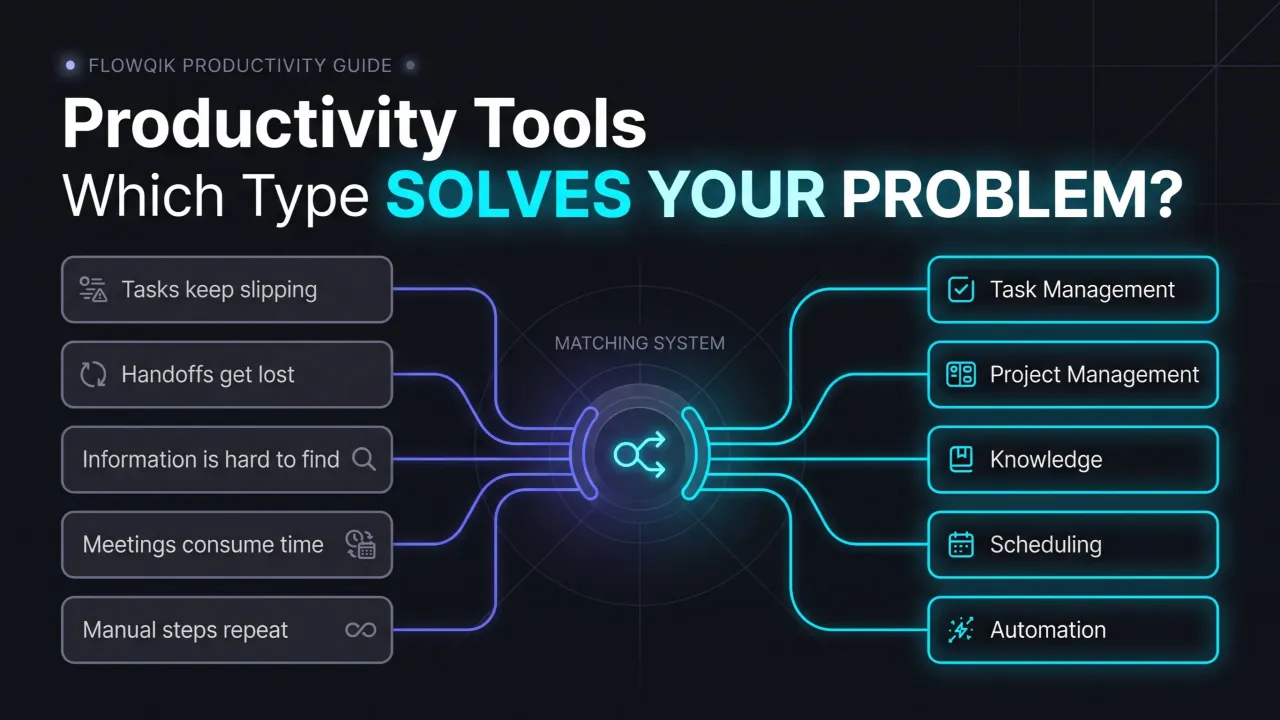
Productivity tools are the apps and services people use to plan work, talk about it, store what they know, create documents, protect their time, and automate repetitive steps. The category is so broad that "which productivity tool should I use?" rarely has one answer. A more useful starting point is working out which type of tool addresses the problem that is actually slowing you or your team down.
This guide maps the productivity tools landscape at the category level. It explains what each major type of tool is for, who tends to need it, where categories overlap, and how to choose without piling on software nobody uses. It draws on published workplace research and official vendor documentation rather than hands-on product testing, and where a topic deserves deeper treatment, it points you to the FlowQik guide that covers it.
What Counts As A Productivity Tool
In practical terms, a productivity tool is software that reduces the friction between deciding what to do and getting it done. That includes a to-do app on your phone, a shared project board, a team chat workspace, a company wiki, a calendar, and an automation that copies form submissions into a spreadsheet. Most of these are now online productivity tools: they run in a browser or sync through the cloud, so the same tasks, files, and messages are available on a laptop, phone, or tablet.
Two distinctions keep the category clear. First, a tool is not a method. Time blocking, the Pomodoro Technique, and Getting Things Done are ways of working; a calendar or timer app is a tool that can support them. Choosing software before deciding how you want to work usually produces a setup that matches nobody's actual process.
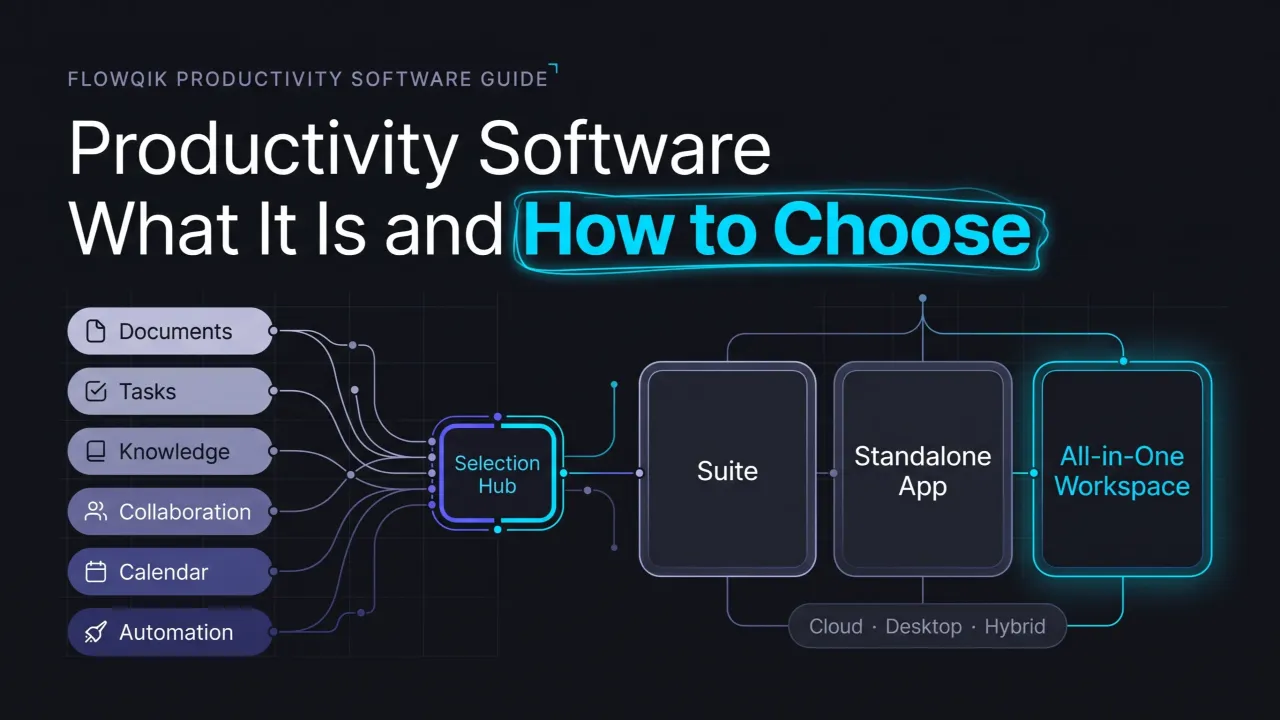
Second, "productivity tools" and "productivity software" are often used interchangeably, but the software side of the conversation (office suites, licensing, deployment, and how business applications are classified) is a subject of its own. FlowQik's productivity software guide covers that ground, while this page stays focused on the types of tools and how to choose between them.
The Work Problems Productivity Tools Are Meant To Solve
Most knowledge work slows down for a handful of predictable reasons, and workplace research keeps finding the same pattern: a large share of the day goes to coordinating work rather than doing it.
Asana's Anatomy of Work Index 2022, a survey of 10,624 knowledge workers in seven countries, found that people spent 58% of their day on what Asana calls "work about work," such as communicating about tasks, searching for information, chasing status updates, and switching between apps. Gartner's 2023 digital worker survey found that 47% of respondents struggled to find the information or data they needed to do their jobs effectively. Microsoft's 2025 Work Trend Index, based on Microsoft 365 usage signals, reported that employees were interrupted by a meeting, email, or chat roughly every two minutes during the workday.
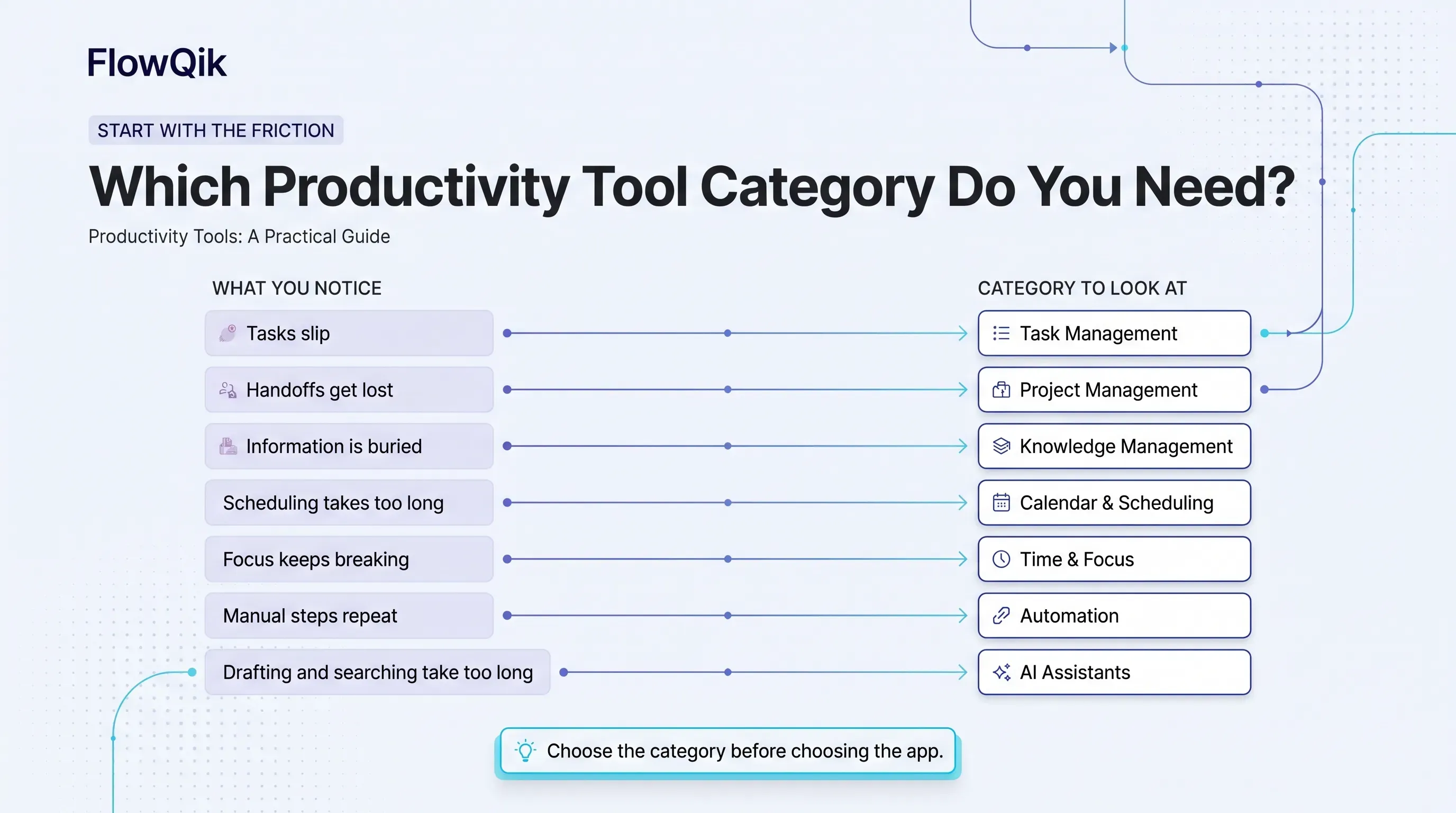
None of these figures show that buying software fixes the problem, and as later sections explain, some of the friction comes from tools themselves. What they do show is where tools can help: keeping track of commitments, cutting coordination overhead, making information findable, protecting attention, and removing repetitive manual steps. The table below connects common problems to the category worth looking at first.
| What you notice | Category to look at first |
|---|---|
| Tasks live in your head, inbox, and sticky notes, and things slip | Task management |
| People keep asking "where are we on this?" and handoffs get lost | Project management |
| Decisions are buried in long email threads or need a meeting to settle | Communication and collaboration |
| You know the answer was written down somewhere but cannot find it | Notes and knowledge management |
| Booking a meeting takes several rounds of email | Calendar and scheduling |
| Reactive work fills the day and focused work never happens | Time management and focus |
| You repeat the same copy-and-paste steps between apps every week | Automation and workflow |
| Drafting, summarizing, or searching takes longer than the thinking | AI assistants and AI features |
The Main Types Of Productivity Tools
There is no official taxonomy, and vendors draw category lines to suit their products. Zapier's app directory, for example, splits its productivity category into subcategories such as project management, task management, calendars, spreadsheets, and time tracking. The grouping below is organized around the job each tool does in a workflow, which makes overlaps easier to see.
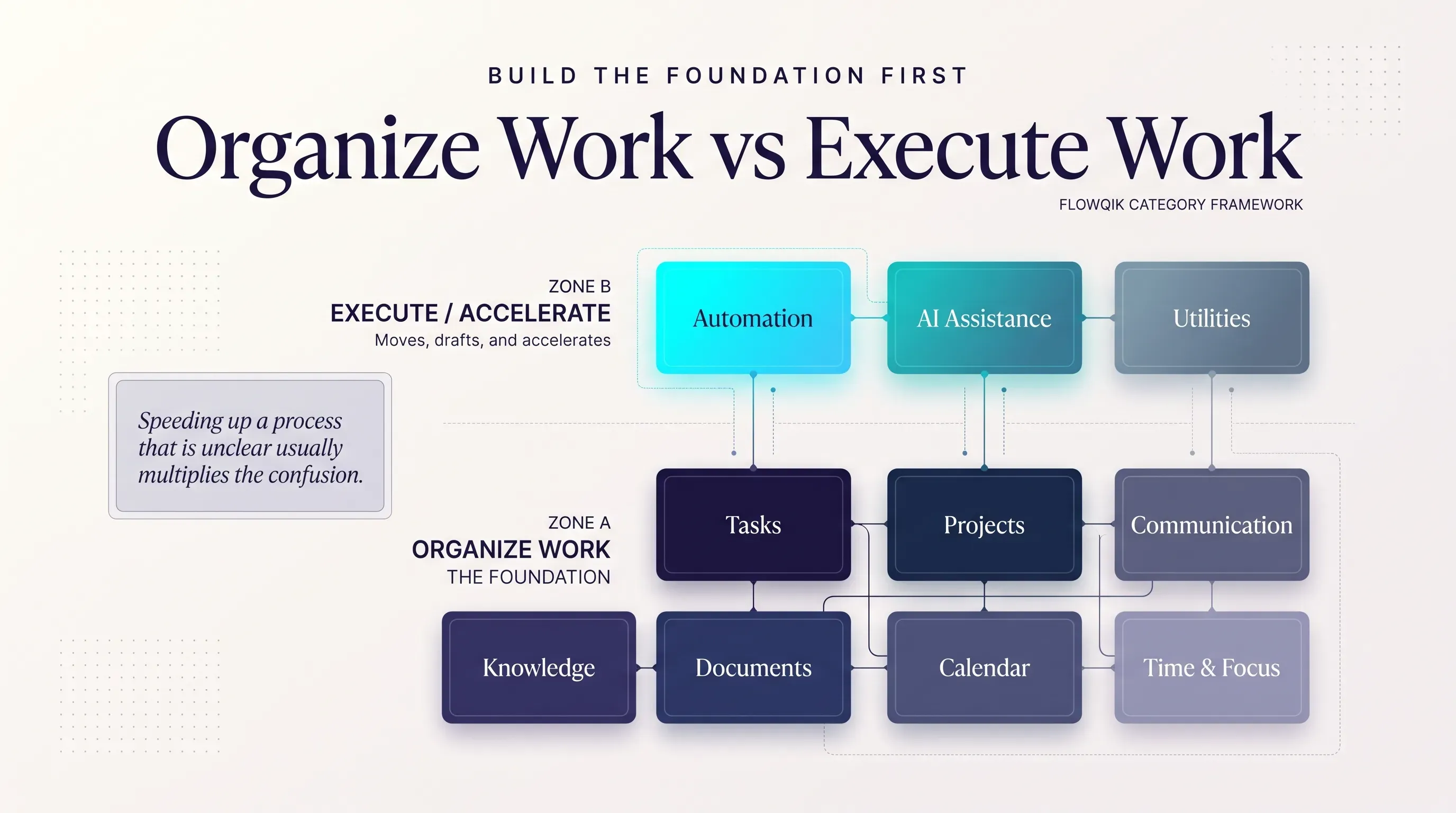
It helps to think of the categories in two broad groups. Some tools organize work: they make tasks, projects, schedules, and knowledge visible and shared. Others execute part of the work: automation moves data between apps, and AI drafts or summarizes. Organizing tools usually need to be in place first, because automating or speeding up a process that is not yet clear tends to multiply the confusion.
Task And Project Management Tools
Task management tools hold the list of things you have committed to do, with due dates, priorities, and reminders. Project management tools extend that idea to groups: tasks get owners, dependencies, and shared views such as boards, lists, or timelines, so anyone can check the status of a piece of work without asking.
The line between the two is mostly about who else needs to see the work. A freelancer tracking client deliverables can usually get by with a personal task manager. A team lead coordinating a launch across design, marketing, and engineering needs shared ownership and status, which is where project tools justify their extra structure. Many products span both, which suits small teams but can be more setup than a single person needs.
Communication And Collaboration Tools
Communication tools cover email, team chat, and video meetings. Collaboration tools are where people work on the same thing together: shared documents with comments, co-editing, whiteboards, and shared file storage. Microsoft's documentation for Microsoft 365, for instance, describes real-time co-authoring in Word, Excel, and PowerPoint, @mentions inside documents to request feedback, and version history for restoring earlier drafts.
These tools matter most for distributed and hybrid teams, where a quick desk-side question becomes a message or a call. They are also the category most likely to create the interruptions they were meant to reduce, so how a team uses them (which channel is for what, and what needs a meeting rather than a written update) matters as much as which one it picks.
Notes And Knowledge Management Tools
Note-taking tools capture ideas, meeting notes, and research for an individual. Knowledge management tools turn that into shared reference material: wikis, documented processes, onboarding guides, and decision records a team can search later.
You likely need this category when the same questions get asked repeatedly, when new hires depend on one person to learn how things work, or when your own notes are spread across several apps. The value comes from structure and search, so a knowledge base nobody maintains quickly becomes one more place where information gets lost.
Documents, Spreadsheets, And Office Suites
This is the oldest layer of the productivity stack: word processing, spreadsheets, presentations, and file storage, now mostly delivered as cloud suites. Google Workspace bundles Gmail, Calendar, Meet, Chat, Drive, Docs, Sheets, Slides, and other apps under one account, and Microsoft 365 is built around Word, Excel, PowerPoint, Outlook, OneDrive, and Teams.
For many organizations, the suite they already pay for covers communication, documents, storage, and scheduling at a basic level. That makes it the sensible baseline to check before adding a separate tool for any of those jobs.
Calendar And Scheduling Tools
Calendars hold time commitments. Scheduling tools reduce the effort of arranging them through booking links, shared availability, time-zone handling, and room or resource booking. They are especially useful in roles with many external meetings, such as sales, recruiting, consulting, and client services, and for teams spread across time zones.
Time Management And Focus Tools
This category includes time trackers, time-blocking planners, focus timers, and apps that pause notifications or block distracting sites. They address a different question from task tools: not "what do I need to do?" but "where does my time actually go, and how do I protect time for work that needs concentration?"
The right tool here depends on whether your problem is planning, tracking, or attention, and the options differ a lot between those three. FlowQik's guide to productivity tools for time management breaks those approaches down in detail.
Automation And Workflow Tools
Automation tools connect apps so that an event in one (a form submission, a new email, a closed deal) triggers actions in others (a task is created, a row is added, a message is posted). They range from simple rules built into a single app to dedicated integration platforms that connect hundreds of services.
Automation suits work that is repetitive, rule-based, and predictable. It suits steps that need judgment far less, and every automation needs an owner who notices when it breaks, for example when a connected app renames a field or an account loses access. A practical test before automating anything: if you could not write the steps down clearly enough to hand them to a new colleague, they are not ready to automate. See FlowQik's workflow automation guides.
AI Assistants And AI Features
AI now appears in two forms: standalone assistants that draft, summarize, research, and answer questions, and AI features built into tools people already use, such as meeting summaries, writing help inside documents, or search across a workspace. Google, for example, states that its Gemini AI features are included in Google Workspace business plans, though exactly what is available can depend on plan, region, and admin settings.
AI is best treated as an assist layer across the other categories rather than a replacement for them. It can shorten drafting and searching, but outputs still need review, and organizations should check how a tool handles their data before connecting it to work accounts. For specific options and use cases, see FlowQik's guide to AI productivity tools.
Browser Extensions And Small Utilities
Some practical gains come from small utilities: extensions that save pages to a notes app or reading list, password managers, text expanders, tab managers, and quick-capture shortcuts. They fix narrow, frequent annoyances rather than whole workflows. Because many extensions request permission to read data on the sites you visit, check the requested permissions and the publisher before installing one on a work browser. FlowQik's guide to productivity Chrome extensions covers specific picks.
Category Summary
| Category | Main job | Best suited for | Typical use case |
|---|---|---|---|
| Task management | Track personal commitments and deadlines | Individuals, freelancers | Pulling to-dos from email and meetings into one list |
| Project management | Coordinate shared work, owners, and status | Team leads, cross-functional teams | Running a launch with tasks across several departments |
| Communication and collaboration | Discuss, decide, and work on shared files | Distributed and hybrid teams | Reviewing a proposal through comments instead of a meeting |
| Notes and knowledge management | Capture and retrieve information | Research-heavy roles, growing teams | A searchable wiki of processes and onboarding material |
| Documents and office suites | Create and store core work files | Almost everyone | Drafting reports, budgets, and presentations |
| Calendar and scheduling | Arrange and protect time commitments | Client-facing roles, multi-time-zone teams | Sharing a booking link instead of trading emails |
| Time management and focus | Understand and protect working time | People with fragmented days | Blocking two hours for focused work and seeing where time went |
| Automation and workflow | Move data and trigger actions between apps | Operations, marketing, anyone with repetitive steps | Sending new form leads to a CRM and a team channel |
| AI assistants and features | Draft, summarize, search, and answer | Writing- and research-heavy roles | Summarizing a long thread before a decision |
| Extensions and utilities | Remove small, frequent frictions | Heavy browser users | Saving an article to a notes app in one click |
Personal Versus Team Productivity Tools
Personal productivity tools are built around one person's way of working. They can be flexible and opinionated, and they are easy to change because nobody else depends on the setup. If you prefer a bare task list to a detailed planner, the choice affects only you.
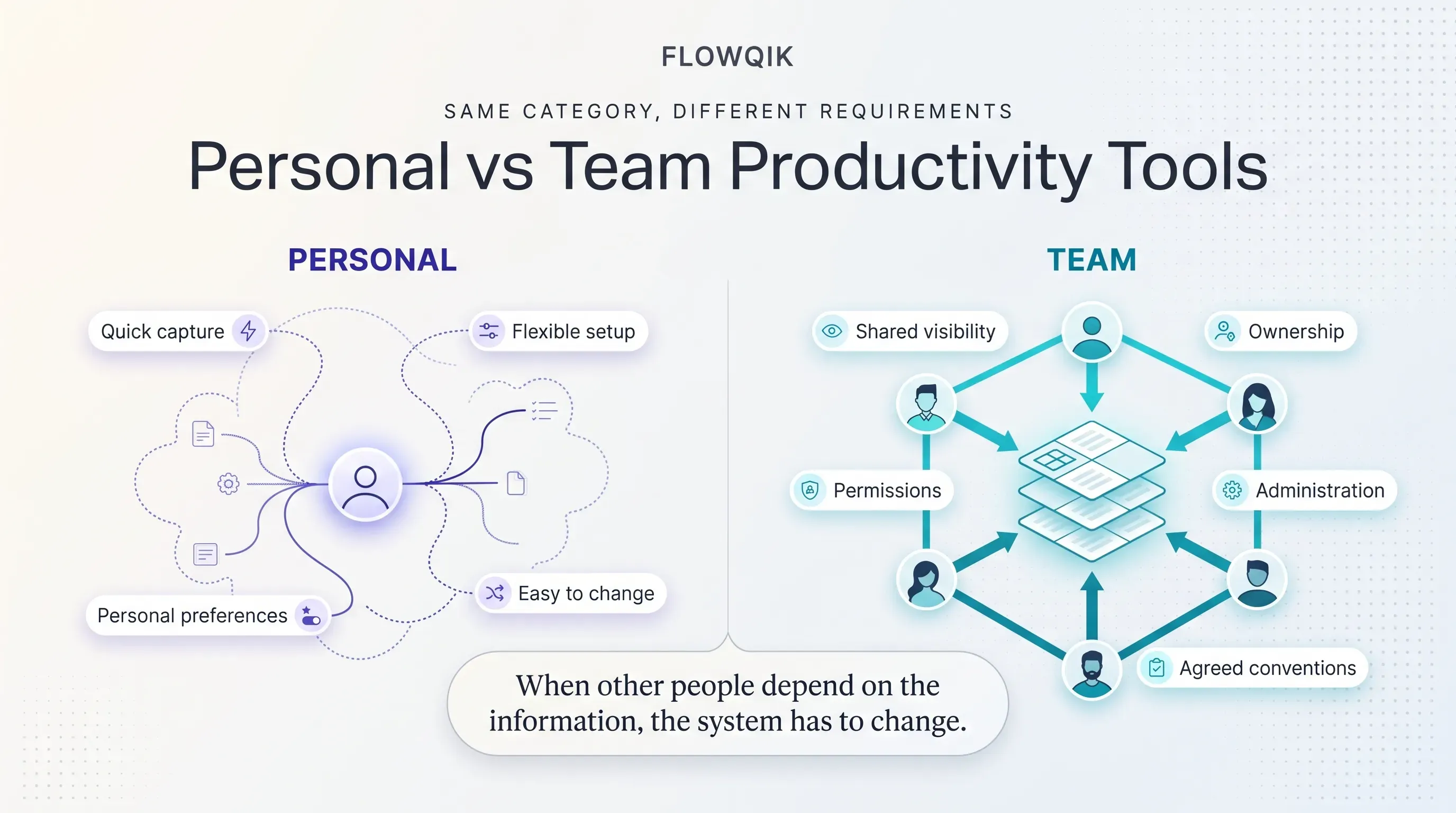
Team productivity tools carry different requirements: shared visibility, clear ownership, permissions, agreed conventions, and administration (adding and removing people, controlling access, keeping data when someone leaves). A tool that feels fast for one person can become confusing at team scale if everyone uses it differently, while a tool designed around team process can feel heavy for an individual.
Working styles also vary inside a team. Atlassian's discussion of productivity styles, based on consultant Carson Tate's framework, is a useful reminder that a visual board, a detailed checklist, and a timeline can each suit different people working on the same project. Team tools that offer several views of the same data tend to accommodate that variety better than ones that force a single view.
The practical consequence is that one category can call for different products depending on who uses it. A solo consultant and a twenty-person agency both need task management, but the consultant is optimizing for quick capture and the agency for shared status and accountability. When a personal tool starts holding information other people need, that is usually the signal to move that information into a shared team tool rather than ask colleagues to adopt your personal system.
How Productivity Tools Fit Together In A Simple Stack
A productivity stack is the set of tools a person or team relies on, plus the way information moves between them. The goal is not one tool from every category. It is making sure each type of information has one obvious home.
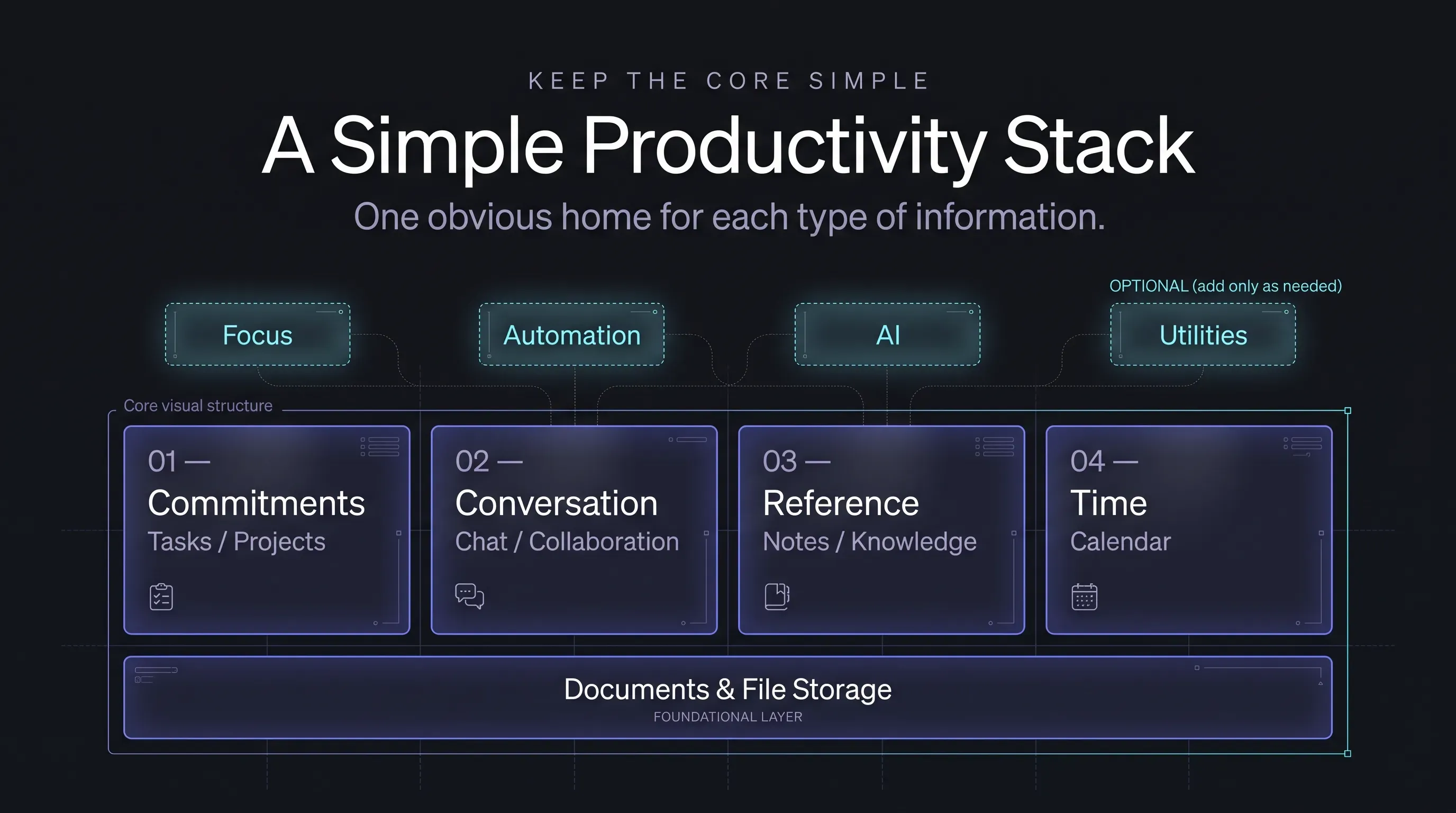
For most knowledge workers, a practical core covers four jobs:
- One place for commitments: a task or project tool where everything you have agreed to do ends up.
- One place for conversation: the channels where discussion and quick decisions happen, with agreed rules about what goes where.
- One place for reference: a notes app or knowledge base for information you will need again.
- One calendar: the single record of time commitments.
Documents and file storage usually come from the suite underneath all of this. Focus tools, automation, AI features, and utilities are then added when a specific problem justifies them, not by default.
To make that concrete, consider a few illustrative setups. An individual analyst might run on a personal task manager, a notes app, and the company's office suite, adding a focus timer on report-writing days. A team lead coordinating a project might add a shared project board so status no longer depends on meetings, and connect it to the team's chat so updates appear where people already are. A team spread across time zones might rely more heavily on written collaboration and a maintained knowledge base so work does not stall while colleagues are offline, then use automation to remove repeated handoffs, such as turning approved requests into tasks. None of these is a prescription; the right mix depends on the work.
All-In-One Platform Or Specialist Tools?
All-in-one workspaces combine tasks, documents, wikis, and sometimes chat in a single product. Their advantage is fewer places to look and fewer integrations to maintain. The tradeoff is that each built-in feature may be less capable than a dedicated tool, and moving away later can be harder because so much lives in one place.
Specialist tools do one job deeply and often suit teams with demanding needs in a single area, such as engineering issue tracking or complex scheduling. The tradeoff is more apps, more logins, and more reliance on integrations. A reasonable rule is to start with the fewest tools that cover the core jobs and add a specialist only when a clear limitation in your current setup keeps costing time.
How To Choose Productivity Tools For Work
The most reliable way to choose productivity tools for work is to start from the problem rather than the product. Write down, in a sentence or two, what is going wrong and how you would notice if it improved: "We miss handoffs between design and development," or "I spend too long finding last month's client notes." That statement tells you which category to look at and gives you something concrete to test candidates against.
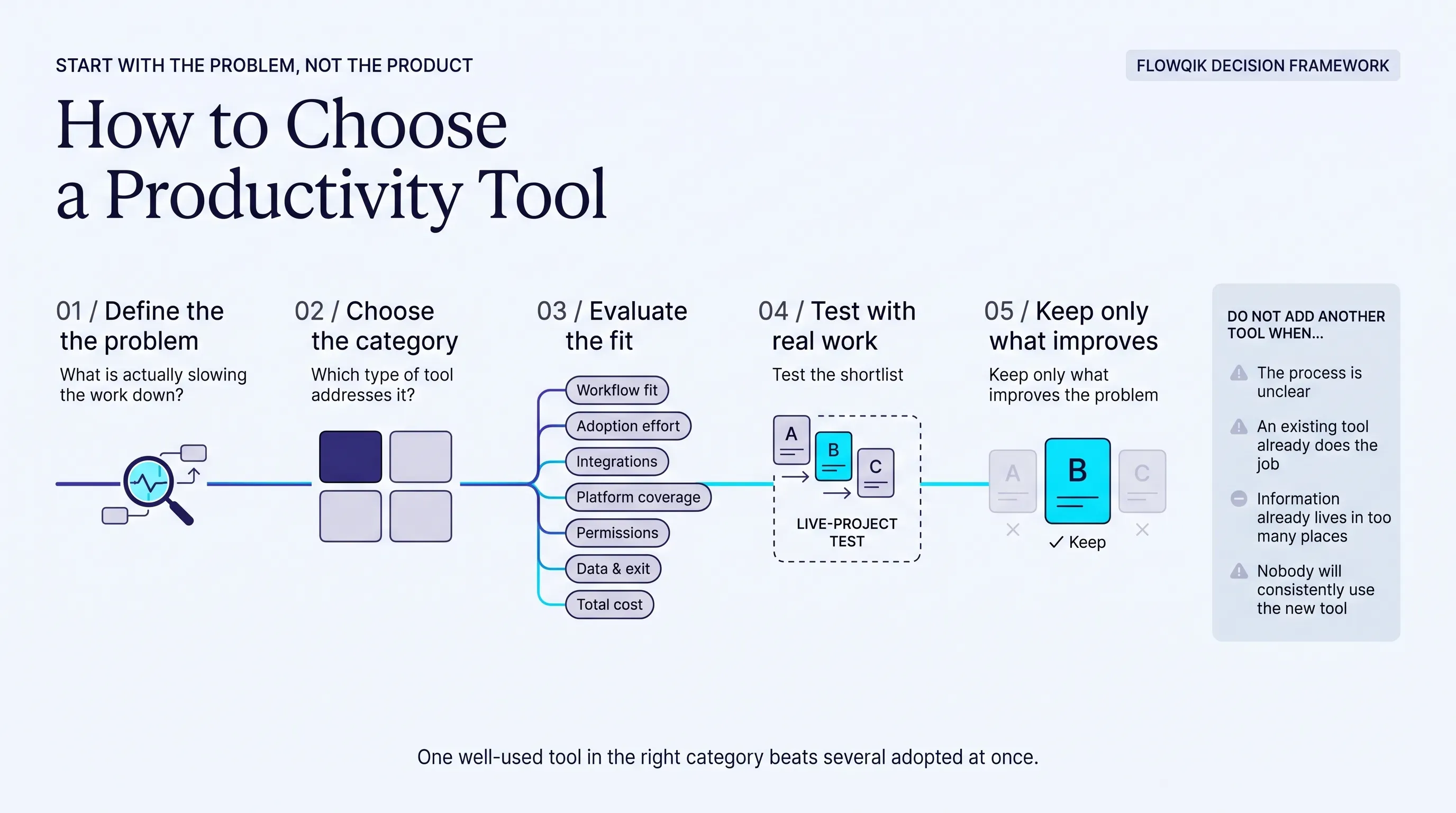
Then evaluate options on the criteria that matter after the first week, not just in the demo:
- Fit with the actual workflow: does it solve the specific problem you wrote down, in the way your work actually flows?
- Adoption effort: how long until a new user is comfortable, and who will set it up and maintain it?
- Integrations: does it connect to the email, calendar, storage, and chat you already use, either natively or through an automation platform?
- Platform coverage: is it available where the work happens, including browser, desktop, mobile, and offline access if you need it?
- Collaboration and permissions: for team use, can you control who sees and edits what, and can you bring in guests or clients if needed?
- Data, security, and exit: where is data stored, what admin and security controls exist, how are AI features allowed to use your data, and can you export everything in a usable format if you leave?
- Total cost: look past the entry price to per-user cost at your team size, the tier you would actually need, and any limits on the free plan.
Finally, trial a shortlist with real work rather than sample data. A couple of weeks on an actual project reveals friction a feature list cannot, including whether people keep updating the tool once the novelty wears off.
When Another Tool Is Not The Answer
Adding software is sometimes part of the problem rather than the fix. Gartner's 2023 survey found the average digital worker used 11 applications for work, up from six in 2019, and that 5% used 26 or more; Gartner linked this sprawl to workers struggling to find information and missing important updates amid notification noise. At the organization level, Okta's Businesses at Work 2025 report found the average company among its customers now uses 101 apps. And a study published in Harvard Business Review in 2022, which tracked 137 users at three Fortune 500 companies, observed workers toggling between applications about 1,200 times a day and spending just under four hours a week reorienting after those switches.
A new tool is unlikely to help when:
- the real issue is unclear ownership or an undefined process rather than missing software,
- an existing tool already covers the job but is not used consistently,
- the same information already lives in two or more places,
- only one enthusiastic person would actually use it, or
- it would add another stream of notifications for people to watch.
In those situations, consolidating tools, agreeing on conventions, or switching off features often helps more than adding something new.
How To Tell Whether A Tool Is Actually Helping
Go back to the problem statement you wrote before choosing. After a few weeks, check the signals it implied: fewer "where is this?" messages, fewer missed deadlines, less time in status meetings, quicker onboarding, or less manual copying between apps. If those signals have not moved, or if people have quietly drifted back to the old way of working, the tool is not solving the problem however capable it is. Removing it is a perfectly reasonable outcome.
Where To Go Next
Once you know which category matches your problem, the specialist guides in this section go deeper:
- Comparing specific apps? The best productivity apps guide covers individual recommendations.
- Struggling with planning, tracking, or focus? Start with productivity tools for time management.
- Interested in AI assistants or built-in AI features? The AI productivity tools guide covers options and use cases.
- Want quick wins inside your browser? See the productivity Chrome extensions guide.
- Need the broader software picture? The productivity software guide explains suites, licensing, and how business software is classified.
If you are still unsure where to begin, find the row in the problem table above that describes the friction you feel most often, and fix that one first. One well-used tool in the right category will usually do more than several adopted at once.
Discussion
Comments
No approved comments yet. Be the first to join the discussion.